Beezid

Thursday, April 2, 2009

Where is the control panel on computer?

Be the first to comment! Posted by Hannah on 5:20 PM

Where is the control panel located on computer?


Today’s How-To Computer Beginner lesson will be How do I find my control panel on my computer.


What is the control panel on the computer? 


The control panel is a place on your computer where you can change or set your computer settings.  It could things like how fast my mouse clicks, what printer to use, how my desktop will look, adjusting your sound for your system.  In some ways you can look at it as a ‘control center’ of your computer.


I will show you where the control panel is located in older versions like Windows 95, Windows 98, Windows 2000, and then windows XP and Control panel in Windows Vista or Seven (7).

For the older versions of windows you need to:

1. Start button

2. Programs
3. Accessories
4. System tools = under system tools you will see control panel

where is the control panel?


On some older systems you can find your control panel


1) start button

2)  Settings

3)  Control Panel


Your control panel should look similar to the one pictured. 


How-To locate your control panel in Windows XP:


Click Start menu button.
Select Control Panel


If you cannot find the Control Panel in your Start menu, select Settings and Control Panel.

Here is two views of what the control panel in XP look like.  Keep in mind each computer may differ slightly.


How-To locate your Control Panel in Vista:

To to your Start Button

Look your Left to click control panel (yellow finger pointing at it)

Vista Control Panel

After you find control panel in Vista you have a choice of two views:

Control Panel Home

Vista Control Panel

Or use that arrow pictured to get to the classic view of the control panel for vista

Vista Control Panel Classic View

Windows 7 (seven) control panel is found the same way Vista was found


Where is the control panel? We found it didn't we!  The control panel is something that a computer beginner will be using from time to time.  You will notice in our other computer basic courses we will refer it often.


I hope our How-To find the control panel on your computer lesson today was helpful.  Keep in mind you can enter your email address, and you can receive future lessons directly in your email box. 


Questions or comments are always welcome!


Monday, March 30, 2009

Java Won't Work? We have answers!

1 Comment so far Posted by Hannah on 9:33 AM

java not working This little guy is called Duke the Java Mascot! What is Java? Chances are your computer may already have Java. If you have seen any multimedia type of things on your computer chances are good Java is what helping you see it!

(Later Note:  I have noticed with newer computer Java is NOT included.  You want to install it.)

Today’s How-To Guide for the Computer Beginner is about problems with java

I get emails:

java issues
java problems
java not working
java issue
problems with java
java troubleshooting
java security issues

I think you get the picture!

Let's go over what java is, where to find it, and then fix our issues with java in that order!

Program Section JavaIf you look in your programs section on your computer, and you don’t have Java?  It’s a free download, and you will USE it!

Part of Java's definition is: Java allows you to play online games, chat with people around the world, calculate your mortgage interest, and view images in 3D, just to name a few...

How do you know if you have Java? On the homepage of Java you can actually see the wording, "Do I have Java?".

Do you have Java?
Yes, what is neat about the Java Site is they will tell you if you have Java or NOT!  Just click the words, “Do I have Java” on the Java Homepage for the answer.

See my picture below, and keep in mind the Java home page may have changed..but that prompt will be there (look below free download button)!

In case you get a security question from your computer firewall asking if this is a safe and reputable site? I would place it in your trusted zone so you don't have issues in the future.  Yes, Java is a very trusted site.

Java Homepage Free Download

With many other programs you get on the internet you are at times asked to update your version. They are basically telling you that they have come up with a new and improved version. 

In most cases you want to take advantage of this update, but if you have any doubts?  You can also search the internet about the update to see if people are having problems with it.  I would say most of the time?  You are fine.

The reason I started this lesson is because some of my friends had more than one version of Java on their computer, and going to some of the sites that they used Java for were giving them problems all of a sudden.   This is the quickest troubleshooting resolution I could come up with!

They normally had errors along the lines of:
java virtual machine not working
java script issues
or basically the screen to the chat room went blank.

HelpBytes has other error messages listed with solutions.  The Java Site also has a help section.

If they looked at their list of programs (add and delete program section) they had Java 6 and Java 7, etc. Those were added when they are asked to update the Java. You could have 3 or more versions of this program, and I have found it causes nothing but problems down the line!

Computers and programs also just can be strange.  The update can be seen to the machine as ‘wrong’, and you have all kinds of problems from there.  Don’t ask me why – machines just don’t have common sense.

For example, one night you go into a chat room and everything is fine.  You update something, and the next time you go to say HELLO to friends?  The computer just refuses to cooperate.  Java isn’t just for chat rooms, but I was more using that as an example.

Have you been asked to update your Java?

Most of the time you get will an update reminder on newer operating systems. The older operation systems (Windows 95, etc.) don't always do that from what I remember.

Java Update

On your task bar  (like picture above) you at times will notice a java icon similar to ones I have pictured below. The taskbar is the area in which you will notice the reminder message to update Java.

Java IconJava Program Reminder Icon

YEP you got it – the logo is similar to a cup of coffee!

From time to time you will be reminded that you have a Java Update, and those are FINE to download! The problem I have seen is Java doesn't work as it should when you have to many different versions on your computer, or too many updates to Java.

If I know I will be updating lets say Java version Number 6 to Java Version number 7 for example....the NEW and IMPROVED version? I go to my add and delete program  section, and completely delete Java 6 before I install Java 7.

If you have don't remember doing this before you might be surprised at the number of versions you have. Its okay! Just delete ALL of versions of Java! When we install the new version of Java you won't be missing a thing! The site will replace the newest version with EVERYTHING you will need to be up to date and flying high once again!

Java is a program you will use quite a bit, but if you having issues after an update?

Delete all versions, and download a fresh copy! Chances are good your issues will disappear!

I will tell you at times certain sites will NOT keep up with the current version of Java, and the updates do you no good.  I will mention that is not the majority of the time.  Its actually very rare from what I have experienced.

Most people realize they are having problems with Java after a new update of the program, and they are no longer able to do something they had in the past.  It could be watching movies, entering a chat room, etc.  Just remove your old version of Java, and install the new version.  Chances are you are SET to go!   You don't know how to install or uninstall java or another program?  Here is a Uninstall Programs tutorial for you.

I hope our How-To Lesson for problems with Java helped you today.  If something is not clear, or you still have questions?  Please feel free to leave a comment.

Don’t forget to add your email in our subscribe box we have here.  You will have our future lessons sent directly to your email.


Friday, March 27, 2009

How-To Uninstall Programs

Be the first to comment! Posted by Hannah on 11:04 PM

From time to time you need to uninstall a program on your computer.  I know in the past my father seemed to think if he deleted the desktop icon the program would be GONE!


Unfortunately, there is a bit more to learning how-to uninstall a program on your computer.


I will also recommend a free program at the end if you are having problems ‘uninstalling a program’ the traditional ways!


Why would you uninstall programs


  • You installed a program, and your computer is freezing, or just not acting the same.  A times programs don’t work well with your operating system, and it doesn’t matter if the box says it SHOULD!


  • In a past lesson I discussed programs like Java.  Java is a free program that is very useful on computers, and at times like most programs they come out with ‘updates’.  So you agree to have your computer update to the newest version of java, and you find sites that you use java on now don’t work. 


  • Other times you get update program messages, and you agree to the update.  The next thing you know they program updating states you must ‘uninstall all previous versions’ before you can use the new one.


  • I have run into issues with a program that I regularly use, and all of a sudden for NO rational reason at all it completely flops.  It just doesn’t work anymore.

  • Other times you notice you never did use that program that you felt you would like, and why not just get it off the computer completely.


Yes there are different reasons to uninstall programs.  Learning How-to Uninstall a program is a very useful skill for the computer beginner. 


If you are planning on reinstalling the program make sure you have the location online for the download, or your program near by.


Below I will show you how to uninstall programs first on the older operating systems, and then we will move on to the newer ones.


With older operating systems you need to hit your start button, settings, and go to your control panel.

Start Button, Settings, Control Panel

Start Button, Settings, Control Panel


Look for your Add or Remove Programs icon.

 
Control Panel Add Remove ProgramsLook in Control Panel for Add Remove Programs Icon


Make sure you look to the TOP of the add/remove program properties, and see the section that is named 'Install/Uninstall'.  See picture below that shows the three tabs.  Click on the install/uninstall tab - the first one!


add/remove programs properties
Find the Install/Uninstall Tab Far Left


You will have a list of programs, and you need to find the one you are looking for.   You can scroll down the list on your right until you find the title of the program you wish to uninstall.  The program titles are in the white box below.


Uninstall Program you are looking for

Click on the program you wish to uninstall, and click the 'add/remove' button (see picture above – it is greyed out)  you see at the bottom of the listing.  Then push the okay button.

Click YES to uninstall program

Chances are you will get a message similar to the one I have pictured.  Its basically a 'are you SURE you want to remove this program?' type of message.  Click YES!


Then the program will uninstall, and you will see something similar to the picture below.


Keep in mind sometimes when you are DONE your computer will ask you to restart the system.  Its is completely normal!


The newer systems like XP, Vista, Seven have a different procedure for add or remove programs

What is nice about the newer programs is that normally have a ‘how-to uninstall’ option that you can use.


You would click your start button, then hit all programs. 

This will bring all your programs that are installled in order for you to find the program that you wish to UNinstall!


If you look at my picture above I choose CCleaner.  I clicked the folder first, and the list below it appeared.


You would click the Uninstall CCleaner, and just follow the easy directions.


What if you don’t have an uninstall option like I pictured above?  We can use the traditional how-to uninstall a program through the control panel.


In newer operating systems such as XP or Vista push start button and then control panel.


See Green Start Button – then hit control Panel


XP systems do have the 'add and remove' programs icon.


Vista in the 'classic' mode calls it 'Programs and Features'.  The classic mode has their icons in alphabetic order so it makes it easier.


If you aren't using the classic check out the arrow below under the programs section, uninstall a program.

Control Panel Uninstall a program


Uninstall a Program – See Arrow


Once your in the programs area - either way you get there classic or otherwise:


Wait for all the programs to refresh in the programs and features section.

Click the program that you want to remove


Look to the top of the white section and you will see some options:  Install, Remove, Repair


Click Remove to uninstall program


Programs and Features


Look for Install, Repair, Remove from top of control panel after you found program from list

If you are prompted to confirm the removal of the program, click Yes


Keep in mind at times you get the option of 'repairing' the program. 


If you having problems with the program? I would use reinstall it anyway.  If the repair doesn't work?  You are going to have to uninstall it anyway.  To me?  It just saves a step.


There will be times in which you will have a program that is HARD to remove, or just refuses to remove itself from your computer.


I know many people for example have issue with Symantec Norton products.  There is a software product that I have heard good things about, and its called


Revo Uninstaller


They have a free version, and a paid version.  I have used this product to actually REMOVE a Symantec Norton product from a friend’s computer.  It worked WELL!  Make sure you pay attention when you download it.  Its not a virus or anything, but sometimes vendors tend to wish to add extras like toolbars, etc along with the software.  You will see the option to say NO thank YOU!


I hope I helped you learn how-to uninstall a program.  Being a computer beginning some of these items I know can be intimidating.  Once you learn to THINK like a machine?  (giggles) it does get easier!


Have any questions or comments please see the comment section below!

Help! I have a computer virus NOW WHAT??

Be the first to comment! Posted by Hannah on 7:59 PM

My father from time to time would be browsing the web, and some stinker website would tell him his computer was in trouble. He would quickly get OFF that site...freak out...and call me, "HELP! I have a virus NOW WHAT??" Yes there are sites out there that will nail you good with viruses after you clicked on something, but most often its from what you download from my experience. Those downloads are executed, and you really start having some issues! Today they are getting even more tricky! Most of the time Dad didn't have a virus, but on occasion he would get one. I still to these day don't know HOW! I would ask all the normal questions about what he was doing, and most of the time he plain couldn't remember! LOL!
anti virus computer virus One day he decided after he got another new computer, and the store had loaded up with anti virus program he did what he felt was a logical thing to do. He decided he was going to load TWO anti virus programs on his computer at once. He told me he wanted TWICE the protection! (Psssssssst! You aren't suppose to do that! It sounds good, but it can really mess up your system!) YES I did save his computer, and he didn't do that again! IT Does sound good, but save yourself and your computer from Dad's mistake - don't load more than one anti virus program on your computer!

There are some really nice free anti virus programs out there that you can try out, and later you can purchase if you are happy with them. I have spoke about some of them here!

Just to be safe! What is a computer virus? Newton BBS has a one page defination is that beginner friendly, and here is part of it! If you wish to read the entire defination click on Newton BBS to read it.
Computer viruses are programs written by "mean" people. These virus programs are placed into a commonly used program so that program will run the attached virus program as it boots, therefore, it is said that the virus "infects" the executable file or program. Executable files include Macintosh "system files" [such as system extensions, INITs and control panels] and application programs [such as word processing programs and spreadsheet programs.] Viruses work the same ways in Windows or DOS machines by infecting zip or exe files.

A virus is inactive until you execute an infected program or application OR start your computer from a disk that has infected system files. Once a virus is active, it loads into your computer's memory and may save itself to your hard drive or copies itself to applications or system files on disks you use.


WELL that is the bare basics of a defination, and recently I found a really neat website that might be helpful to others. This website is run by a computer company that works with virus and malware issues (among other things), and has some free tutorials online about how to rid yourself of them. I wanted to introduce you to this site instead of making personal recommendations since times change, and so do products! This is their business, and I would assume they will keep up on technology!

They made this site for people that already have a virus, and are trying to rid themselves of it. They want the hands on experience to do this themselves, and if they can't they have this company to help them with the rest!

If you don't have a computer virus it will introduce you to products that will keep your system up to date, and alot safer so that you DON'T get a virus! Its nice because they have a step by step tutorials, and videos along with it!


The Above was an introduction video for AntiVirus programs by Bass Computers

Help! I have a computer virus...NOW WHAT? Relax! There is help!

Saturday, December 13, 2008

What are the different types of computers?

3 Comments so far Posted by Hannah on 6:29 PM

Imges of different types of computers - IBM
Image via Wikipedia
What are the different types of computers?
Goodness knows there are enough of them!

As you may have guess today’s How-To Guide for the Computer Beginner is to go over the different types of computers.

I will go over various types of computers today, and show you different photos of different types of computers so it will be easier to visualize.

I will go down a little personal history lane as well to remind you how far we have come with the different types of computers!

Desktop Computer or Desktop PC
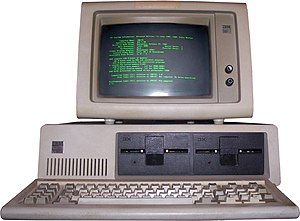
Types of Computer - Desktop Computer
This is the type of desktop computer years ago, and you really thought you were doing great!

I remember those ugly screens, and those green letters on the monitor. 

If you look below the monitor you will see the floppy drive.   The 5 1/4 floppy disks were extremely fragile, and yet you needed to make sure you stored your important files on them.Photo of desktop computer

I have to wonder if these older computers are part of the reason I wear glasses today!  When I look at the newer desktop computers today?  WOW what a difference!

YIKES have we come a long way!

PC = Personal Computer

This last picture could also be part of a work station, but we will talk about that later.

These can also be referred to as a personal computer.

Computer Tower
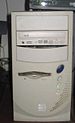
Picture of Computer Tower
One of the different types of computers is something you may have already.  The computer tower I have pictured here is a bit older.  It still has the 3.5 floppy drive.  Today those drives are not even used anymore, nor do computer towers even COME with them most of the time!

The computer tower was a different type of computer than the past.  It was tall, and you could add more than one hard drive, floppy drive, CD Rom, etc.  It was the wave of the future!  If you wanted the CD rom on a computer?   You would have updated to one of these computer towers.  The early desktop computers didn’t have them from what I remember.

Today’s computer towers you don’t have your floppy drive, and at the time if you wanted to be cutting edge (with the old computer tower) you wanted different CD rom drives to lets say burn information, or make videos.   Its quite amazing now because the CD rom drives of today will even burn in image with lasers onto your DVD or CD roms instead of having the write the title on them now.

Your CD rom was great for storage of your files, and whepicture of type of computer towern you got your NEW computer tower?  You had a CD rom for each and every program in the past.  If you ran out of memory or hard drive space?  The towers of old – just as today – were meant to be able to expand.

Computer towers started to take over the traditional desktop you see above.   Although you do see the desktop computers they aren’t as popular as they once were.

The Technology advanced so much I’m sure we could put your entire blocks old computer tower information into ONE home personal computer today.

Laptop Computer
Types of computer the laptop

You also have your laptop computer. I have seen most young adults take these to college with them.

What I would have done to get my hands on THIS laptop compared to the green fonted monster pictured above from IBM.

Laptops are meant for portability, and they are not as powerful (most of the time) as desktop computers.  Everything has to be more compact.

PDA (Personal Digital Assistant)


 type of computer PDAMost people refer to this type of computer as a PDA.

PDA Stands for Personal Digital Assistant.

Generic term for handheld devices such as Palm Pilots that are commonly used to store address and calendar information. Newer models include networking features.


Years ago I had one, and it was nice…but the battery life was awful.
Palm Pilot various types of computers


I had my calendar, contacts, etc online, and I would ‘sync’ as they called it when I got home.  Basically you hooked up the device with a cable to your computer, and executed some software

The software would look for changes, and update both locations – the PDA and the online location.  It was nice when you placed notes in the device while you were away from the office.  You also had a copy of your most recently notes from the computer WITH YOU to make appts, notes, and update address information.

Today?  Everything is wireless, and I’m sure sync software is obsolete.  When I think of the history of the personal digital assistant?  Its really neat to think how powerful they are today.
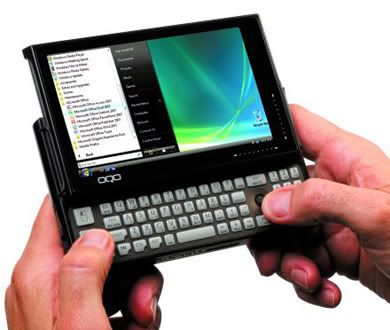
handheld pc different type of computer
This different type of computer is also called handheld computer.

Personally, this would drive me up a tree! I don't want to type on something this small, and because my sight isn't the best. That screen would drive me nuts! There are people that love this type of computer, but its NOT for me!

It reminds me of the new and improved cell phones doesn’t it?  Our new and improved cell phones could be considered a PDA.

Tablet PC

This image with is different looking computer isn’t it?  This is the tablet PC.

With a Tablet PC you use an electronic stylus to write on the screen, just like with a pen and paper, only your words are in digital ink.

Picture of Tablet Computer
The Tablet PC saves your work just like you wrote it (as a picture), or you can let the Hand Recognition (HR) software turn your chicken-scratches into regular text.

Yes you can also put the button with your stylus like a keyboard as well.  Its neat to look at the progress that the tablet PC has made with time.


The Computer Workstation
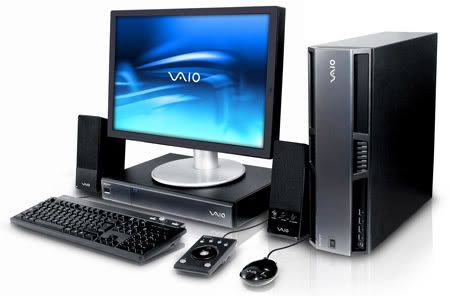
Different picture of workstation computer They refer to this as a computer work station. The workstation to me is basically the whole complete package. Monitor, tower, keyboard, mouse, etc. Workstation is also connected to a network.


When talking about PC computers, most people probably think of the desktop type, which are designed to sit on your desk.

PC stands for Personal Computer. The tower and the smaller mini-tower style cases have become popular as people started needing more room for extra drives inside – as we talked about.

The Workstation is computers that are all connected together.

Computer networkA workstation that is part of a computer network and generally would be expected to have more than a regular desktop PC like memory, storage space, and speed.

If you see the picture networked means they are also connected together, and they share things like the printer or the scanner.


MainFrame Computer

What is a mainframe
This is called a mainframe computer. A main frame is the heart of a network of computers or terminals which allows hundreds of people to work at the same time on the same data.

It requires a special environment - cold and dry.

Example of Use:
Larger companies use this to hold on to information regarding your orders, contact information, etc. You may be talking to customer service but your information lands in one of these guys!   If you call one morning and speak to a representative in Illinois, and the next day call back and speak to California?  Chances are they are using the network hooked up together, and possibly on the same main frame.

In the early days of computing, mainframes were huge computers that could fill an entire room or even a whole floor! As the size of computers has diminished while the power has increased, the term mainframe has fallen out of use in favor of enterprise server. You'll still hear the term used, particularly in large companies to describe the huge machines processing millions of transactions every day.

SuperComputer
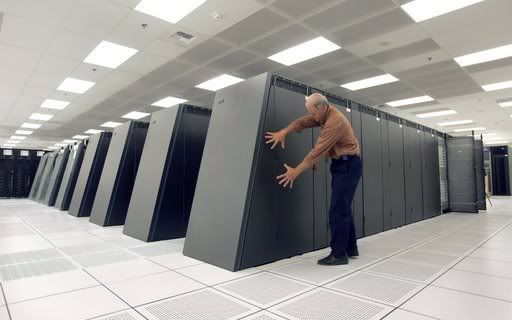
Supercomputer This is an example of a supercomputer. We are talking HUGE companies that use these. These are used for jobs that take massive amounts of calculating, like weather forecasting, engineering design and testing, serious decryption, economic forecasting, etc. Top 500 supercomputer site will show you these big daddies of the computer world!
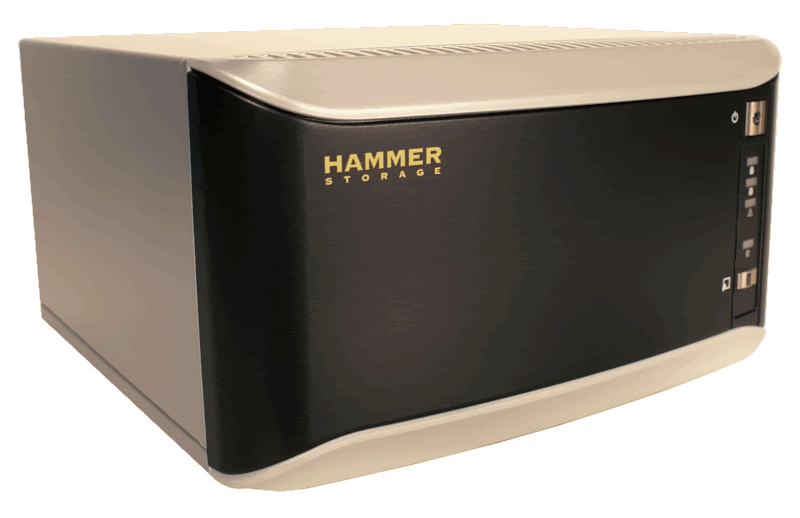
Picture of Server part of computer workstation

The Server

When you talk about the various types of computer we shouldn’t leave out the server.

Have you ever called a company, and they told you they can't help you right now because their server went down? This is a picture of a server that might be used in smaller companies or home networks.

There are a couple of different types of servers, Computer Networkand here is a link to some computer definitions of server.

A computer that has been optimized to provide services to other work station computers over a network. Servers usually have powerful processors, lots of memory and large hard drives.   In this picture the brown tower would be the server.


Wearable Computers

Different type of computer wearable
NOW you can be ahead of some of your friends! THIS is called a wearable computer! Can you believe it?

According to Wikipedia®


Wearable computers are computers that are worn on the body. They have been applied to areas such as behavioral modeling, health monitoring systems, information technologies and media development. Wearable computers are especially useful for applications that require computational support while the user's hands, voice, eyes or attention are actively engaged with the physical environment.


One of the main features of a wearable computer is consistency. There is a constant interaction between the computer and user, ie. there is no need to turn the device on or off.

Another feature is the ability to multi-task. It is not necessary to stop what you are doing to use the device; it is augmented into all other actions. These devices can be incorporated by the user to act like a prosthetic. It can therefore be an extension of the user’s mind and/or body.  Amazing isn’t it?

Well! There you go with some of the different types of computers!   I’m sure with time we have to revised this article again.  The industry just keeps changing.

I hope you learned something today with out How-To Guide for the computer beginner lesson on ‘different types of computers’.

If you have any questions, comments, or don't understand something please use the comment section at the top of the lesson. How do you do that?? Click HERE to see how to comment on a blog!

Don't want to miss a lesson? Use the email Subscription button!


Enhanced by Zemanta
Holiday Gift Guide: Save up to 50% on Christmas Gift Ideas at BarnesandNoble.com. Spend $25 to get FREE Shipping!