Beezid

Sunday, February 6, 2011

Computer Recycle Bin: How do you delete files, folders, and icons?

Be the first to comment! Posted by Hannah on 5:39 PM

Computer Recycle Bin
All windows computers come with what we call a ‘recycle bin’.  Some of the pictures of the icon almost remind me of a trash can.  When I got Vista it was different this time.  It almost reminds me of a glass doesn't it?

Think of the recycle bin on your computer LIKE a trash can, because we use it to get rid of icons, files or folders that have outlived their use for us.  It will be a basic computer operation for you in time!

Just like a trash can there are times in which you will empty the recycle bin on your computer, but that will be the next lesson.

Today I'm was looking at a recipe that I placed on my desktop for a Crunchy Chinese Chicken.  It was basically an shortcut I had placed on the computer desktop to remind me to make it one night for dinner. 

Now I have decided I really don't need that shortcut on the computer anymore, and I want to get rid of it.  I'm going to show you a couple of different ways I can get my file, folder or icon into the Recycle Bin on my computer.

Keep in mind you can't remove programs doing this.  You need to go remove programs section under your control panel for that.   YES you can delete the program icon, but the program will still be on the computer itself.

Select the Item
The first portion for any of the steps below starts with selecting the item to be sent to the recycle bin on my computer.  You do this by using your left click button on top of what you wish to send to the recycle bin on your computer.

As you can see from my picture my Crunchy Chinese Chicken recipe is highlighted.

At this point you have a couple of different options you can use to send it to the recycle bin.

1)  When I click to highlight the icon pictured I DON'T let go!  I click once to highlight and HOLDING down that click I then DRAG the icon over the icon picture of the recycle bin on the desktop.  Once you are OVER the icon picture of the recycle bin you let GO!  It should be gone!

2)  The second way is again highlight the item you wish to send to the recycle bin.  Then RIGHT click.  You then are given a couple of options like the picture I have supplied.  You want to click the word 'delete' in this case.


Right Click
As you can see you have a couple of different choices in this picture.

You can use your left click button again to click on 'delete'.

3)  The last option I find is the easiest.  You highlight the icon as I mentioned before, and then you look on your keyboard to find the 'delete' button.

Delete Key
Once you find that delete button you PUSH IT!

Like to so many other things we do on the computer you may get a message when attempting to send your item to the recycle bin.  It is basically asking us ARE YOU SURE you want to send it to the recycle bin?

Are you sure you want to delete

If you notice the right below the question it mentions the recipe I was trying to get rid of by 'FILE name'.  

Its a nice double check for ourselves.  I tend to go rather fast when I delete things, and on occasion I click the WRONG file, folder or icon.  I don't notice I picked the wrong item until this prompt comes up with the question, and of course the NAME of the file I'm getting rid of shows up.  I can say NO at that point if I made the mistake, but in this case I have chosen the correct item.  

I tell the computer YES I want to send this file to the recycle bin on my computer.

Computer File Folder
This is a picture of a computer FILE folder.  I use these at times to keep organized.  For example, in this file folder I keep shortcuts to websites I read on a regular basis.

You may have seen this type of icon, and it will hold videos, photos, and documents for some examples.

You can delete these files just like you have seen above for files and icons.  Just keep in mind that EVERYTHING inside that file will also deleted.  Its always a good idea to double click on the folder to make sure everything in the folder is something you want to get rid of.  You would then CLOSE the folder, and follow either step 1, 2 or 3 above.

I find at times a visual is better at explaining things.  I made a video showing the above examples regarding the computer recycle bin.

If you can't see the video Click HERE.

I hope this helps others, and you are now more comfortable with deleting files, icons, and folders with your computer recycle bin.

Don't forget to subscribe to future lessons below by typing in your email address.  Keep in mind its easy to stop the lessons in the future.  There is an unsubscribe link on each one you are receive.

Sunday, January 16, 2011

What is a computer Process?

Be the first to comment! Posted by Hannah on 5:10 PM

Task Manager Computer Process
Computer Process Tab
A computer process is an instance of a computer program that is being executed. 

When you sat down, turned on your computer today?  The operating system (windows) executed a process so you could use the computer.  In simplistic terms it turned on the windows program.

At times you notice you get a message from your virus protection program stating it is updating definitions.  That is another computer process, because the program executed a task to update your virus protection.

When you hit your browser button to go onto the internet?  You once again executed a computer process.  Again in simplistic terms you told the computer, "GO on the internet!"


The computer may have programs running in the background that you never see or understand.  Those are all computer processes.  If you look at the picture above?  When you hit the 'control' button, the 'alt' button, and the 'delete' button together it brings up the task manager.  The task manager shows you all the computer processes that are running on your computer currently.

In laymen's terms a computer process is any task your computer is doing, or task you asked it to do.

Ed Asked:   How do you Know which processes can be deleted and which ones to save?

I found a site online that seems to have a HUGE list of computer processes.  They are listed in Alpha Order, and tell what they are - and if you can get rid of them.

TASK LIST PROGRAMS (including Windows 7/Vista/2008/XP/2003/2000 Services)


Awesome Question ED!  Thank you for help me help others!

Tuesday, May 5, 2009

What is a CD Rom? What is a CD Rom used For?

2 Comments so far Posted by Hannah on 9:11 AM

What is a CD Rom? CD is short for compact disc!

What is a CD Rom?  What is a CD Rom Used for?

Unlike the Floppy disk or the hard drive that are magnetic storage CD Roms are optic storage. They are read by a very fine laser beam. My children love to think of Star Wars when I say that! Floppy disk's lifespan can be very short, and to be honest can be very fragile! Keep in mind some floppy disks are better than others, but overall its scarey to depend on them. Magnetics can wear out quickly where as the CD rom? Its can take a licking and keep on ticking as the commerical says! Please don't take that to mean you need to abuse them. You don't want to do that either! CD Roms can wear out as well, but most of the time if you take care of them its measured in spans of 10 years or more!

Besides the durable nature of the CD rom lets look at storage space compared to Floppy disk. You can place an entire encylopedia on a CD rom. If you were to place that on Floppy disks? It would be more than 400 disks to have the same information. CD roms are cheap, durable, and hold LOADS of information!

I have a friend of mine that is intimidated by loading a CD rom into her computer. I remember asking her if she ever loaded a compact disk into her CD player, or a DVD into her DVD player? She gave me the 'your kidding me right' look as she rolled her eyes stare. (YEP I was being sarcastic at the time) I told her then you have ALL the technical expertise required to load discs into your computer CD or DVD Drive!

Be sure to handle the disc only by its edges so that you don't scratch the surface or get any dirt or finger prints on it.

If your drive has a open slot on the front of your computer for the CD rom slide the shiny side down (label on top) into the slot.

If your drive as a drive tray: Press the load/eject button on the front of the drive to open it. Then lay the disc down in the tray (shiny down, label up), and press the load/eject button again.

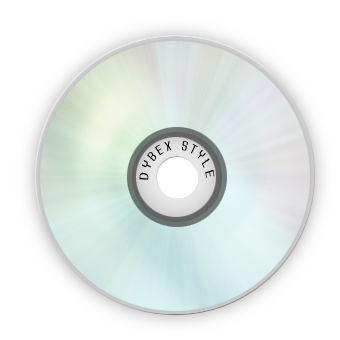
CD Rom This would be an example of the label. You see the title or the name of the CD rom.

CD Rom label side UP placed in the CD ROm drive!

Photobucket

If you ever have an issue with playing a CD or DVD it may be a little dirty. To clean the CD Rom get a small lint-free cloth. Wipe the CD Rom from the center of the disc to the outside of the disk. Don't clean in a circular motion of the CD Rom. Make sure you wipe the shiny side, and not the side with the label (it has the writing on it). The computer reads the shinny side. If you get something sticky on it? Dampen your cloth with a little distilled water, and wipe as I mentioned above. Wait until your CD rom is completely DRY before inserting it to try to use it again.

What is the CD rom? What is a CD rom used for? The CD rom is used for storage basically, and most programs now days are CD roms. There are different types of CD roms as well, and we will go over that in another lesson.

Don't forget to enter your email below in the box so you don't miss out on future lessons! It will be emailed to you as they are written! Don't forget to suggest lessons or leave a question or comment if you wish!

Monday, May 4, 2009

Where is CD Drive?

Be the first to comment! Posted by Hannah on 10:24 AM

In previous lessons I was trying to explain the different types of disk drives. The last type of disk drive is called the CD Drive that you place CD Roms in. Let me show you a picture of the drive with a CD Rom in it.
CD Rom Drive or D Drive

For my computer the E drive is my CD rom drive. How did I figure that out?

My Computer Icon
You can either go to 'my computer' on your desktop, OR

Vista has renamed "My computer" to just 'Computer'.

Most of the time Windows Vista and XP don't have their version of 'my computer' on the desktop. If you have it on your desktop it could look similar to this:

Vista My Computer Icon

If you see 'my computer' or 'computer' like pictured above on your desktop double click it at this point.


If you don't have one of those icons above (or similar) Hit your start button, and then go to computer (newer systems like Vista) or 'my computer' for other versions of windows. You should see a bunch of disk drives with letters. We are only concerned with those at this point. We will go over the other items you see later (if you have any).

'my computer' screen shot for XP

Keep in mind your 'my computer' or 'computer' screen may be a little different then pictured, but the principle is the same.

You may see pictures of drives and letters. C Drive is normally your Hard Disk Drive. In some of the newer systems you will actually SEE a picture of a CD rom like above, and at times your drives will be named for you (windows, floppy, CDrom, DVD, etc). My CD rom drive says, "DVD RW DRIVE". At times some computers DON'T make it that easy for you to identify things! That will be in a future lesson about device manager.

We will look at the device manager in a future lesson, and you will see how your computer identifies your CD Rom among other things! Where is the CD Drive? For now check under your 'my computer' or 'computer' section on your computer.

Don't forget to subscribe to have future lessons sent to you automatically to your email box below!


Friday, May 1, 2009

What is an Operating System?

1 Comment so far Posted by Hannah on 4:04 PM

What is an Operating System? The operating system of your computer is the is the MOST important program, and basically the backbone of your computer. We deal with Windows PC's on this blog, and your operating system can be called:

Windows Vista
Windows XP
Windows 2000
Windows ME
Windows 98
Windows 95

Those are some of the names that seem to be the most popular for operating systems software for your computer.

If you are reading about operating systems you may see people call them OS or O/S. Those are short abreviations for the word 'operating system'.

The purpose of an operating system is to organize and control hardware and software so that the device it lives in behaves in a flexible but predictable way.

Believe it or not operating systems have started to pop up in smaller computers as well. If you tinker with electronic devices, you're probably thrilled to know that operating systems can now be found on many of the devices we use every day, from cell phones to video games. The computers used in these devices have gotten so powerful that they can now actually run an operating system and applications. The computer in a typical cell phone is now more powerful than a desktop computer from 20 years ago. Hard to believe isn't it?

What is an operating system? You see it as Windows Vista, or one of the others titles I mentioned above. What does an operating system do? It provides basic instructions your computer needs to function.

Holiday Gift Guide: Save up to 50% on Christmas Gift Ideas at BarnesandNoble.com. Spend $25 to get FREE Shipping!