Beezid

Saturday, November 22, 2008

What is Ram? What is Memory?

Be the first to comment! Posted by Hannah on 8:03 PM

What is Ram? What is Memory? Below is a picture of RAM inside of your computer!

RAM Pictures, computer memory

A standard "module" or "stick" of desktop memory is long, thin and resembles a short ruler. The bottom of the memory module has one or more notches to guide for proper installation and is lined with numerous, usually gold-plated connectors. Here is a closer look at RAM.
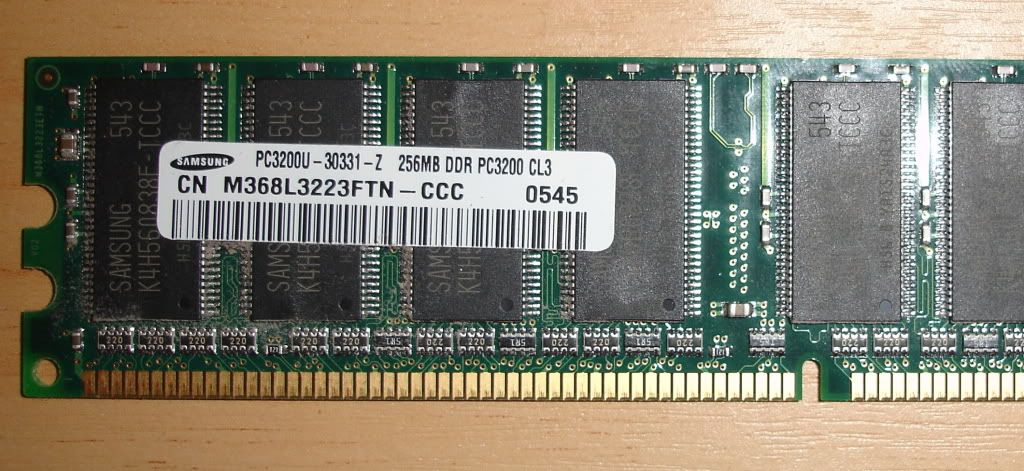
RAM or Memory

Random Access Memory (RAM) provides space for your computer to read and write data to be accessed by the CPU (central processing unit). When people refer to a computer's memory, they usually mean its RAM.

Photobucket

This type of memory usually allows your computer to work considerably faster, as RAM is many times faster than a hard disk. If you are familiar with cars it gives it more HORSEPOWER!

RAM is volatile, so data stored in RAM stays there only as long as your computer is running. As soon as you turn the computer off, the data stored in RAM disappears. Storage devices, such as hard drives, maintain data (Like your letters and pictures) even when they're turned off (as long as you saved the file); memory (RAM), on the other hand, holds onto its contents only when the the computer is on and functioning. Turn off your computer, and the data in memory vanishes. Temporary memory is referred to as RAM, or random-access memory.

SDR, DDR, DDR2, and DDR3 RAM these are types of RAM that you may have seen, and NOT known what the heck it was! If you look at the sales flyers for stores that sell computer items they will tell you what current is on sale!

Prior to 2002, most computers used single data rate (SDR) RAM. Most computers made since use either double data rate (DDR), DDR2, or DDR3 RAM. DDR2 is able to achieve faster transfer rates to prevent limitation of your CPU's performance, and DDR3 technology takes these advancements even further.

Note that these RAM technologies are not interchangeable. One type of RAM will not function if installed with another type, and physical differences in the RAM modules prevent them from even being inserted in the same computer. In other words you can't place DDR2 into a computer that has slots for SDR memory (older computers). See the picture below to see what slots look like inside a computer.

Photobucket


RAM is Also Known As:
main memory, internal memory, primary storage, memory "stick", RAM "stick"

If you are interested in how excately it works How Stuff Works has a more technical article on it. I wanted you to have a basic idea so you know what people are talking about when you hear it.

Every time you start your operating system, launch a program, or open a file, the relevant program code and/or data is loaded into RAM. That's why you see RAM listed in the system requirements for the software you buy.


If you have more RAM, you can open more files or programs at once and load bigger files or programs onto your system.

RAM capacity is rated in terms of megabytes (MB), and a typical computer will ship with 64MB to 128MB installed. However, you can increase that total to 256MB, 512MB, or even a whopping 1GB, if your system supports it.

You might have heard the term, "Swap out the memory". I have done this with computers in the past. For Example, if you find that your slots have a capacity of a WHOPPING 1GB of memory. You look inside your computer, and find you have a 1 slot filled with 128MB memory installed into it. Keep in mind this isn't a realistic example okay? I wanted to use extreme measurements to make a point! You find that your computer has a total of 3 slots! If I were a huge gamer or do alot of graphic work I may need all the RAM I can get! I will buy 3 of those whopping 1GB RAM cards, and take out the 128MB that I have installed...and DUMP IT in trash can! I would place the new RAM into my computer. I have now swapped out my memory!

Ram is a type of memory! When you hear about it most of the time that is what they are talking about! Now you can answer questions when you are asked, "What is Ram? WHat is Memory?"

If you have any questions, comments, or don't understand something please use the comment section at the top of the lesson. How do you do that?? Click HERE to see how to comment on a blog!

Don't want to miss a lesson? Use the email Subscription button!

Make sure to check out, "How much RAM does my computer need?" and How do I know if I have enough RAM installed?


How much (RAM) memory does my computer have?

Be the first to comment! Posted by Hannah on 6:34 PM

How much memory does my computer have? I heard that question alot, and I wanted to give you some resources for it! Its not the only resource, but it will give you a starting point! If you need to know what RAM is please see, 'What is Ram?' First.

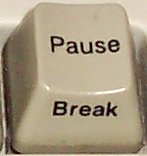
Some keyboards you should by able to see the WinKey and Break keys. Hold the Winkey down, and then push the break key. Below are pictures of the WinKey+Break! Keep in mind yours may look a bit different depending on your keyboard manufacturer!

WinKey+Break

WinKey+Break


Above is the Winkey. Does the logo look familiar?

If you can't find those keys you can try a different way. With the older operating systems to find how much memory your computer has you right click on your 'my computer' icon on your desktop.

my computer icon

For the newer versions of window to find how much memory your computer has you go to the start button, and then computer. In the picture below when you are over the MY computer you right click to properties!

start, my computer

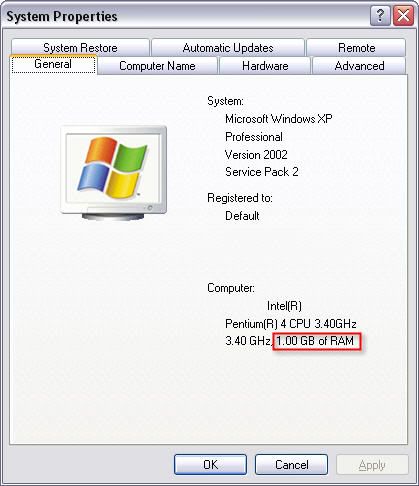
You will get your system information, and your RAM amount for your computer.

computer properties, RAM


Alot of people just go the start button, control panel, and look for the system icon.

How much memory does your computer have? WELL there are a number of ways you can find out!

Check out: How do I know if I have enough RAM installed? and What is Ram? WHat is Memory?

If you have any questions, comments, or don't understand something please use the comment section at the top of the lesson. How do you do that?? Click HERE to see how to comment on a blog!

Don't want to miss a lesson? Use the email Subscription button!


Tuesday, November 4, 2008

How to Use a Search Engine

Be the first to comment! Posted by Hannah on 10:05 PM

What is a search engine anyway?

search engine

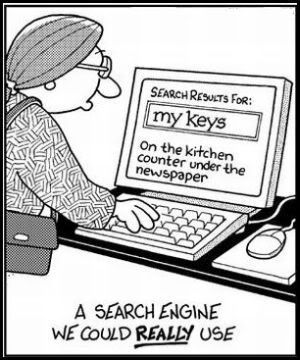
Boy I could use that type what about you?

I guess we will have to wait for type of search engine!

Let me show you some logo's for some popular search engines for a minute!

search engine

You Recognize any of these logos? We have Google, Yahoo, MSN and AOL in this picture! Goodness knows there are TONS more! Those are the ones you hear about alot! I remember when I first read about a search engine called DOGPILE, and instead of your enter button it had FETCH!

As I was watching my daugther one night after she was allowed to use the computer, and she attempted to use a search engine for homework I realized...I need to clue her in on a few basics! She was doing a project for school called, "Do my plants need carbon dioxide to grow?" She of course typed in this question, but she got some pretty limited responses. Its the same principal as the humorous picture above, except it didn't show her where the keys were!

I'm NOT saying she didn't get any results just typing in her questions 'as is', because she did get results! She just wasn't thrilled with the results she got!

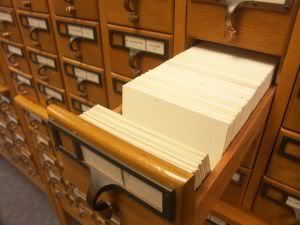
Google for example sends what they called spiders to crawl the web! If you don't like spiders that doesn't sound so nice, but if you have a website that is totally awesome! Websites are being created all the time, and those spiders go out to see what is available! Search engines are the biggest card catalog of information that you library wished they had! Card Catalog Pictures, Images and Photos


YES there are websites out there that have the title of my daugther's report, and YES you can just type in your questions and see what happens! People that compose those websites may not always use that phrase, AND you could be missing out on some awesome websites elsewhere!

With search engines at times you need to think of keywords or key phrases to use. I told my daughter to remember it was a machine! If she wanted MORE information about carbon dioxide, plants, and if they needed it to grow .... TRY some different ways of asking the computer! REMEMBER the search engines are GOOD, but they don't have the human common sense factor! I told her to try CARBON DIOXIDE or CO2 than hit the space bar and then type PLANTS and see what comes up! She looked at me .... CO2? I said YES that is a different way of saying carbon dioxide right?

Google is going to look for sites that use the words carbon dioxide and plants first off. Those are first few words she typed in. I told her to use CO2 and plants to see if she came up with even BETTER results! It would be nice if the search engines were as smart as the cartoon above to tell you where you can find your keys, but they aren't that good just YET!

Google does bring up the most POPULAR sites that use the keywords or phrases you type into your search box first! Don't get scared when you see it came up with 7,000,000,000,000,000 results! YOU don't have to search that far to get your answer! If the first 2 pages of results aren't anywhere NEAR what you are looking for - try new keywords or phrases!

What is nice about search engines is let's say you are looking for a hunting ground in Galena Illinois. Make sure you include the GALENA and the state to narrow your results! Goodness knows if you type in hunting in Illinois you will come up with a heck of alot MORE results, but it may not be near Galena! Try Pizza in Tampa Florida, or African Violets in Dallas Texas! Keep in mind you don't have to get technical with search engines. 'Pizza (space) Tampa, FL" is fine!

Remember those spiders?

Those spiders crawled into websites, and the search engine will bring you the most popular sites for those keywords! There are TONS of stores that sell Pizza, but not ALL of them are in Tampa! The spiders tell Google to show the ones they CRAWLED that had the words PIZZA and TAMPA in it!

Keep in mind the phrase: you say tomato and i say tomahto

In other words in my daugther's example Carbon Dioxide or CO2 to see if you get better answers! Can't think of anything search for a thesaurus!

OHHHH! Another really neat thing about search engines? They are a really cool calculator! Need to check your child's schoolwork? Type in 15% of 125! It will give you the answer....remember its a MACHINE! 15% of 125 = 18.75... WOO HOO! What about the weather? Type in temperature in Tempe AR and it will give you the answer! Remember MACHINE, and key thing to remember.....NO common sense! Play around with it! Chances are GOOD you will come up with all kinds of neat stuff!

How to use a search engine isn't that hard...now is IT?!?!

If you have any questions, comments, or don't understand something please use the comment section at the top of the lesson. How do you do that?? Click HERE to see how to comment on a blog!

Don't want to miss a lesson? Use the email Subscription button!

Wednesday, August 13, 2008

What is a Firewall?

Be the first to comment! Posted by Hannah on 9:52 PM

I am going to go over the bare basics of firewalls, and if you need more than that there are TONS of firewall information sites out there! I know when I started to learn about firewalls years ago it was overwhelming at times!

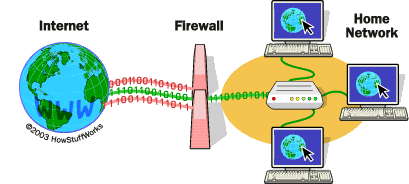
A firewall's job is basically the same thing as a physical firewall! It keeps destructive sources AWAY from your property!

If you have been using the Internet for any length of time, and especially if you use one at work you may have heard the term FIREWALL before! You might have heard some coworkers mention they can't go to a certain site, because it won't let it pass the firewall!


The above picture may be a corporate setup, or a home network. You have the Internet with all its dangers, and the firewall basically helps to filter OUT some of the items you DON'T want near your company or home computer!

If firewall sees harm it won't allow you to view the material. Firewalls aren't perfect, and they can stop you from seeing or using perfectly fine websites. It doesn't have common sense like you and I, but there are ways to help override the firewall....NOT at work though!

The best way I can to describe it.......its like a traffic cop! It decides what will come in!

Nick At Work

Firewalls use filters to calculate what it feels safe at the time. Machines use what they call IP addresses. You can think of it like your house number if you will. Firewalls will block certain IP address, and we humans just see that we can't view a website! The domain name could be blocked. The Domain here for example is: http://computerbasicslearning.blogspot.com/.

Certain home computers will come with a firewall already installed, and other times you will need to purchase one. Its an extra layer of insurance that your computer will not come into harm. Your computer in this case would be considered the gateway. You are the access point for the computer to the Internet.

A hardware firewall would be your router if you have one at your home. You are connected to your router - that is connected to your modem...which you connect to the Internet thru! Routers can be configured to your needs, and you can set the filters to what you DON'T want in and what you do!

The firewall protects you from all kinds of crooks, nuts, and just plain NASTY people that are just looking for an unprotected computer to take advantage of!

They can take control of your computer, and run programs on it. At times they get into your personal files that you might have on the computer.

Certain programs may have they call 'backdoor' entrance. Its basically a hidden access to the program so they can control it.

They could use your email program to send out all kinds of ugly spam!

They could place an application on your computer, and basically make it crash!

It would infect your system with viruses.

Always be careful of the pop up ads, because they could place a backdoor program on your computer to use later!

There are more things that could happen, but these are just to name a few!

Firewalls have levels of protection, and I'm sure you are thinking the fullest protection possible! If you block everything it does defeat the purpose of the Internet to begin with! You can choose one of the upper levels, and as you surf the Internet tell the computer WHICH sites you know are safe!

Firewall programs do take come getting used to at times! The Vista firewall I have on my computer was a pain when I first got it! EVERY site I love to visit was blocked, and I to slowly tell the computer..........ITS OKAY ALREADY!

Monday, July 7, 2008

How-to System Restore - Data Recovery

Be the first to comment! Posted by Hannah on 3:55 PM

Within Windows ME, Windows XP and Windows Vista you have utility called 'system restore' that can help you return your computer almost back in time when everything was working properly! Its the magic time machine for data recovery!

time machine

Depending on how your computer system is setup will depend on how many restore points your system will offer you. You computer will only store so many of them - the points of restoring that is!

Its kind of like a assembly line! A new restore point is made, and an old one falls in the HUGE computer DELETE pile! One in and ONE out!

Assembly Line


Some people will increase or decrease the amount of storage space that their computer will allow for this process! In Windows XP

Start -> Right Click my Computer properties
Click System Restore Tab
Under Disk space usage,Slide it according to how much disk space you need for your system restore.

Here is a quick video showing you the above directions for the storage space used for System Resource!


In Vista of course its MORE work! Vista for Beginners has a good explanation to do this!

A good hint if you plan on changing anything within your operation system like install a program, a device like a printer, or even change system settings like size of fonts - always 'create a restore' point before doing that. That way if anything goes wrong you can go back to previous condition of your computer!

Your computer MUST have enough storage space in order to use system restore, so if you know your computer is SHORT on storage space (space on your C drive) it not even be able to handle the system restore operation! You will know this by an error you get, or you don't have any restore points on your computer. You can try to free up some space on your hard drive by removing documents, programs, etc that are taking up precious space to see if you can get it working! There are other causes as well such as registry damage as well.

System Restore creates restore points during the day in case something goes wrong with your computer during the day. This is basically a data recovery program, and it will restore you computer to an earlier time! Lets say you decided to install a program, change a setting, or introduce your new webcam to the computer, and then all of a sudden your computer is really having problems! YEP computers can be moody!

Click your start button, and then programs or all programs, then accessories, then system tools. Under your system tools there should be a program called 'system restore'.

system restore

You can either 'create a restore point'

System Restore 1

Or as you can see from this screen 'restore my computer to an earlier time'

System Restore

Vista also shows backup, but you want SYSTEM restore. I wanted to show you this so you don't get confused!

vista system backup and restore


Depending on your operating system the options for calendar maybe different! This is one example of what you will see. All of them are pretty similiar calendars, and your screen should be pretty straight forward as far as what dates and times are available for you to use!

System Restore


If you are ON your computer during the afternoon, and all a sudden the computer decided to throw a temper tantrum you want to pick a time prior to the computer being MOODY!

You would then push next, and system restore will display a message basically asking you if you are SURE you want to do this!

System Restore ME

Your data files (like if you wrote a letter or report earlier that day) should be okay. Make sure you save them before contining! The program will tell you that this operation is reversible. Click NEXT again!

This data recovery program will take a little while to collect the information it needs to complete the process, and will restart the system as well. Once you log into your system again, and you may get messages that the restoration is complete or asks you if you want to undo the system restore operation.


Here is a video basically going over the items we just spoke about with system restore.


Final HINT - some people actually keep an log of changes you make to your system. It takes a little time, but it will HELP retrace your steps LATER!

We all have used system restore from time to time! ITS OKAY... we happens! That is what is there for! Remember if you have questions, comments or corrections.......USE the comment section! Don't know how? Check out the post of the post it shows you HOW!


Holiday Gift Guide: Save up to 50% on Christmas Gift Ideas at BarnesandNoble.com. Spend $25 to get FREE Shipping!